Download the digital version of manual Scanmarker Max : here
Download the phonics words list supported : here
Scanmarker Max – Complete User & Support Guide
Congratulations on choosing the Scanmarker Max.
This guide explains how to set up your device, scan text correctly, access core features, and troubleshoot common issues.
1. Getting Started
Charge First
Charge the pen for 30 minutes before first use.
Power
Power ON/OFF: Press and hold the power button for 3 seconds.
Restart: When the pen is on, press and hold for 3 seconds → tap Reboot.
2. Buttons & Connectors
The Scanmarker Max scans one line at a time.
Center the text between the two black nibs at the front.
How to Hold
Hold the pen at a 45°–80° angle.
How to Scan
Press the tip down → the white scan light turns on.
Glide straight along the line.
Do not rotate, pause, or tilt the pen.
3. Bluetooth Connection for wireless earbuds (Optional)
For earbuds/headphones.
Go to Settings → Bluetooth
Enable Bluetooth
Select your earbuds from the list
“Successfully Connected” appears
4. Wi-Fi Connection (Recommended)
Wi-Fi is required for additional languages, translation, transcription, upgrades, and cloud features.
Go to Settings → Wi-Fi
Enable Wi-Fi
Select a network (supports 2.4GHz only)
Enter the password
The pen reconnects automatically next time.
5. Upgrade the Device
Go to Settings → Upgrade
Check for available updates
To request a firmware update:
Scan the QR code on your pen to send us the device SN, or
Find it under Settings → About
6. USB Charging
Use the included USB-C cable or any compatible Type-C cable.
Charging requirement: DC 5V, 1A–3A.
Charging Safety for Scanmarker Devices
Applying more than 6 volts to the scanner will instantly and permanently damage the device.
This can happen when:
A charger outputs higher than 5V, even briefly
A cheap or unstable charger produces a momentary voltage spike at plug-in
To prevent any risk of damage, follow these guidelines:
Whenever possible, charge the scanner directly from a USB port (computer, laptop, or certified hub).
Avoid cheap or unbranded chargers, especially those from unknown manufacturers.
Use only reputable, branded chargers purchased from reliable retailers.
Always verify the charger’s output rating before plugging in — it must clearly state 5V output.
Using a charger outside the recommended specifications voids warranty and can cause irreversible electrical failure.
7. Safety
Clean with a soft, slightly damp cloth
Avoid corrosive cleaners
Keep away from liquids, oil, or moisture
The pen is battery-powered — avoid water exposure to prevent shock
8. What’s in the Box
Scanmarker Max
USB-C cable
Ruler
Wired headphones (analog type)
User manual
Note: Wired earbud compatibility for the Scanmarker scanners..
The Max/PRO/Pal models supports only analog Type-C earbuds, not digital USB-C models.
This is because the device outputs an analog audio signal, and it requires earbuds that can receive analog audio through the USB-C connector (also known as USB-C Analog Audio or AAM — Audio Adapter Accessory Mode).
Digital USB-C earbuds contain an internal DAC (audio chip) and require a digital audio signal, which these models does not provide. As a result, digital USB-C models will not produce any sound.
In short:
✔ Works with analog Type-C earbuds
✘ Does not work with digital USB-C earbuds
The MAX outputs analog audio only
9. Main Functions
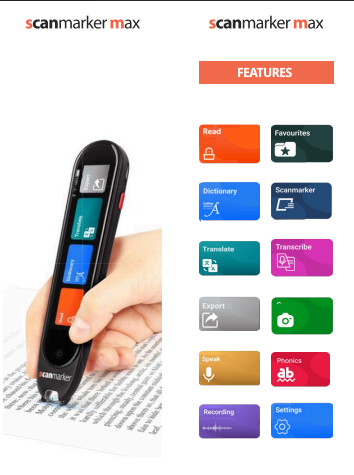 1. Read- reading text aloud
Reads text sentence-by-sentence or word-by-word.
Supported Languages
Offline: English, Spanish, Italian, French, German
Online: Up to 56 languages
Modes
Sentence mode – reads full sentences
Word mode – reads selected words
Additional Settings
Reading speed (in function settings)
Scanning direction (in general settings)
Multiline mode (in general settings)
2. Dictionary (English Only)
*screen reference word "choose "
Tap any scanned word from Reading function to view its definition and read aloud.
Or scan sentences or words to view and listen definitions.
Tap the star to save definitions to Favorites.
3. Translate
Offline translation: 5 languages ( English, Spanish, Italian, French, German)
Online translation: 112 languages
Listen to original text or/and translated text. By default the translate language will be read aloud.
Online translation languages only work when the device is connected to Wi-Fi, so please ensure you have an active connection.
4. Export
Save scanned text to a file on the pen and export via USB.
How to use:
Tap + to create a new file
Scan → tap ✓ to save
Tap Export and follow the on-screen steps to transfer the file to your computer.
The download process differs slightly between macOS and Windows, but in both cases the exported file will be saved and recognized as a .ttx file.
How to Export a .txt File to a Windows Computer
- Save or export the scanned text on your Scanmarker
- Connect the Scanmarker to the Windows computer using the supplied USB cable.
- Wait a few seconds. Windows should automatically recognize the Scanmarker as a connected storage device.
- Open File Explorer.
- Select This PC, then open the connected Scanmarker device.
- Locate the exported
.txtfile. - Copy or drag the file to your Desktop, Documents, or another folder on your computer.
- Double-click the
.txtfile to open it in Notepad, Microsoft Word, or another text application. - When finished, safely eject the Scanmarker before disconnecting the USB cable.
Important: No additional software is required for Windows. If the Scanmarker is not recognized, use the original USB cable or another cable that supports both charging and data transfer.
For Mac OS please download and install an additional software on your computer. Link here
How to Export and Save a .txt File on macOS
- Download the installation file:
Download Android File Transfer for Scanmarker - Open the Mac’s Downloads folder and double-click the downloaded
.zipfile. - Open the extracted folder, then double-click AndroidFileTransfer.dmg.
- Drag Android File Transfer into the Applications folder.
-
Open Applications, then launch Android File Transfer.
If macOS blocks the application:
- Control-click the application and select Open.
- Select Open again.
- If necessary, go to System Settings → Privacy & Security and select Open Anyway.
- On the Scanmarker PAL or Pro, save or export the scanned text as a
.txtfile. - Connect the Scanmarker to the Mac using the supplied USB cable.
- If a USB connection option appears on the Scanmarker, select File Transfer.
- Open Android File Transfer. The Scanmarker’s folders should appear automatically.
- Locate the exported
.txtfile and drag it to the Mac’s Desktop, Documents, or another preferred folder. - Double-click the copied file to open it with TextEdit or another text application.
- When finished, safely disconnect the Scanmarker from the Mac.
Important: Use the original supplied USB cable .
5. Speak (Voice Translation)
Requires Wi-Fi.
Voice translation between 2 languages : 120 languages supported.
Tap the microphone, speak, release to translate.
Select languages in function Settings.
6. Recording
Record and store voice memos.
Playback on the pen
Export as MP3 to your computer once connected via usb cable.
7. Favorites
Save words, definitions, or sentences for repeated review like a bank or words..
8. Scanmarker Max connect with the web software
Scan directly to a computer or mobile device (android) through a (Chrome or Edge browser)
Software address: https://app-max.scanmarker.com/
How to Connect the scanner with the software
Turn on Bluetooth on both devices scanner and computer/mobile
Open the web app address in chrome browser https://app-max.scanmarker.com/
Register your email and follow on screen instructions to finish onboarding
Press Connect on your mobile when prompted and select Max from the popup list
Once connected scanned text will appear live on your screen.
Next time automatic connection: tap the Scanmarker icon on your scanner /pen reader device and it will auto-connect.
Mobile connection video example here : link
9. Transcribe
Converts speech into written text in real time, save on the scanner and export when connected by usb to a computer.
Supported Languages
English (US), Arabic, Mandarin, Traditional Chinese, French, German, Italian, Japanese, Russian, Spanish, Vietnamese.
10. Photo Scan translate and reading
Capture and convert printed text paragraphs (up to 5-6 lines) using OCR.
How to use:
Select Photo Scan and select language of text and language of translation
Aim at text (best 5–6 lines)
Capture → adjust → confirm
View the extracted text or translation
Tap Speaker to listen
Tap Original to view the photo
11. Phonics (EN)
Scan English words to hear pronunciation + phonetic spelling.
Also displays recommended similar words. Use recomended flash cards > buy here
Or download the list and make your own worksheet.
12. Settings Overview
Wi-Fi (2.4GHz)
Bluetooth
Volume & brightness
Date & time
Standby & auto shutdown
Interface language
Software update
Restore settings
Reading speed
Pen direction (right/left-handed)
13. Exam Lock / PIN Lock
To Lock:
Go to Settings → Lock
Enter a 4-digit PIN
Selected functions become restricted
To Unlock:
Enter the same PIN.
If You Forget the PIN:
Press and hold Settings for 10 seconds → enter universal code.
Contact us if the code is lost.
14. Captive Portal Wi-Fi (Schools, Airports, Hotels)
For networks requiring login via a webpage:
Go to Settings → Wi-Fi Certification
Select the network
Enter username/password
Tap Connect / Login
15. Support & Updates
Technical Support: contact@scanmarker.com
Firmware updates install automatically when connected to Wi-Fi
Comments
0 comments
Please sign in to leave a comment.