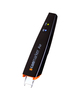
To download pdf manual link : here
Welcome to your Scanmarker Barcode Scanner support guide. This manual provides the essential steps to set up, operate, and customize your device for optimal performance.
Technical Specifications & Compatibility
The Scanmarker Barcode Scanner is designed for high-performance data capture across multiple platforms and environments.
Connectivity & OS Compatibility
Dual Wireless Modes: Supports both Bluetooth and 2.4 GHz wireless connections for cable-free operation.
Cross-Platform Support: Fully compatible with Windows, macOS, Android, and iOS.
Versatile Scanning: Features multiple scan modes to adapt to different workflow requirements.
Supported Barcode Symbologies
The device supports an extensive range of barcode types, including both standard and inverted (white barcode on a black background) formats.
| Barcode Type | Supported Formats |
|---|---|
| 1D Barcodes | UPC-A, UPC-E, EAN-8, EAN-13, Code 128, Code 39 (Standard & Full ASCII), Codabar, Industrial 2 of 5, Interleaved 2 of 5, Code 93, MSI, Code 11, ISBN, ISSN, GS1 DataBar, Code 32, and more. |
| 2D Barcodes | QR Code, Data Matrix, PDF-417, Aztec Code, Maxicode, and more. |
1. Getting Started
Basic Introduction: Familiarize yourself with the primary functions and capabilities of your new scanner.
Interface: Understand the Battery Display and the layout of the Buttons to navigate device settings.
Registration & Warranty: Email contact@scanmarker.com with your purchase number, date, and full name to receive a free 3-month warranty extension and exclusive member perks.
Scanmarker Barcode Scanner can connect via a USB receiver (2.4 GHz) or via Bluetooth.
2. Connection & Setup
Initial Connection: Follow the specific steps to connect your barcode scanner to your preferred device by scanning the correct QR code with the scanner in the manual starting page 6.
Reset Options: If you need to clear customized settings, use the Restore Factory Defaults function.
Power Management:
Set up Power and Standby preferences to conserve battery. To change power preferences please check from page 14
Configure the Automatic Shutdown timer to your preferred duration.
Automatic Shutdown (Standby Mode)
To conserve energy, the scanner automatically enters standby mode after a period of inactivity. This is particularly useful for saving power if you forget to manually turn the device off, while keeping it "ready" for batch scanning.
You can configure the shutdown timer with the following options:
Immediate: Enters standby as soon as the trigger is released.
Timed Intervals: 30 seconds, 2 minutes, 5 minutes (the default setting), or 30 minutes.
Never: The device stays always on.
Charging LED Indicators
The scanner provides visual feedback on its power status through LED lights:
Solid Red Light: Indicates the battery is currently charging.
Red Light Off: Indicates that charging is complete.
3. Operational Modes & Settings
Scanning Modes: Choose between different Scan Mode Settings based on your environment and workflow.
Feedback: Adjust the Buzzer Setup to control the volume or toggle the audible scan confirmation.
Advanced Tools:
Invoice Function: Specialized settings for processing invoices.
Language Settings: Select your preferred language for device operation.
Data Formatting: Learn how to Hide characters or Add Prefix and Suffix strings to your scanned data.
4. Reference Tables
Annex 1: Consult the Character comparison table for detailed data mapping.
Annex 2: View the Barcode Type ON/OFF list to enable or disable specific barcode symbologies.
If you need more help please let us know.
Comments
0 comments
Please sign in to leave a comment.